

Prerequisites
You must be a Site Deluxe Administrator to create users.
Creating a New User
- Log in to the Think Vault web portal.
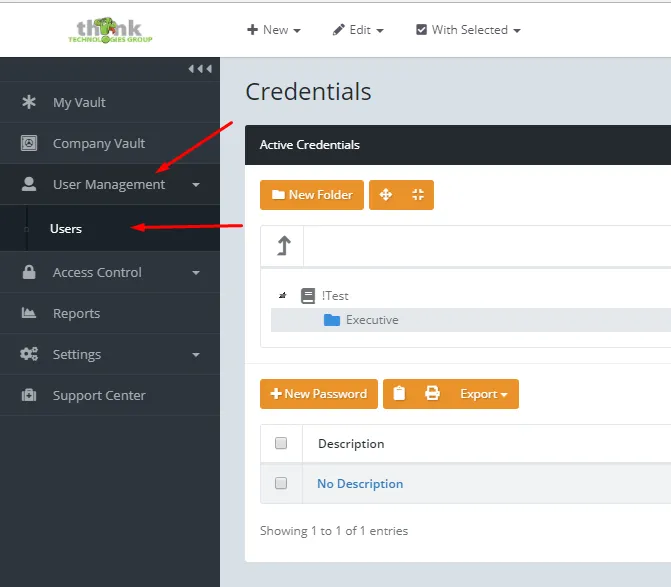
- Click User Management → Users.
- Click New User on the right, then fill out the required information. For User Permission Level, choose Site Deluxe Administrator for full control, or Site Deluxe User for standard access.
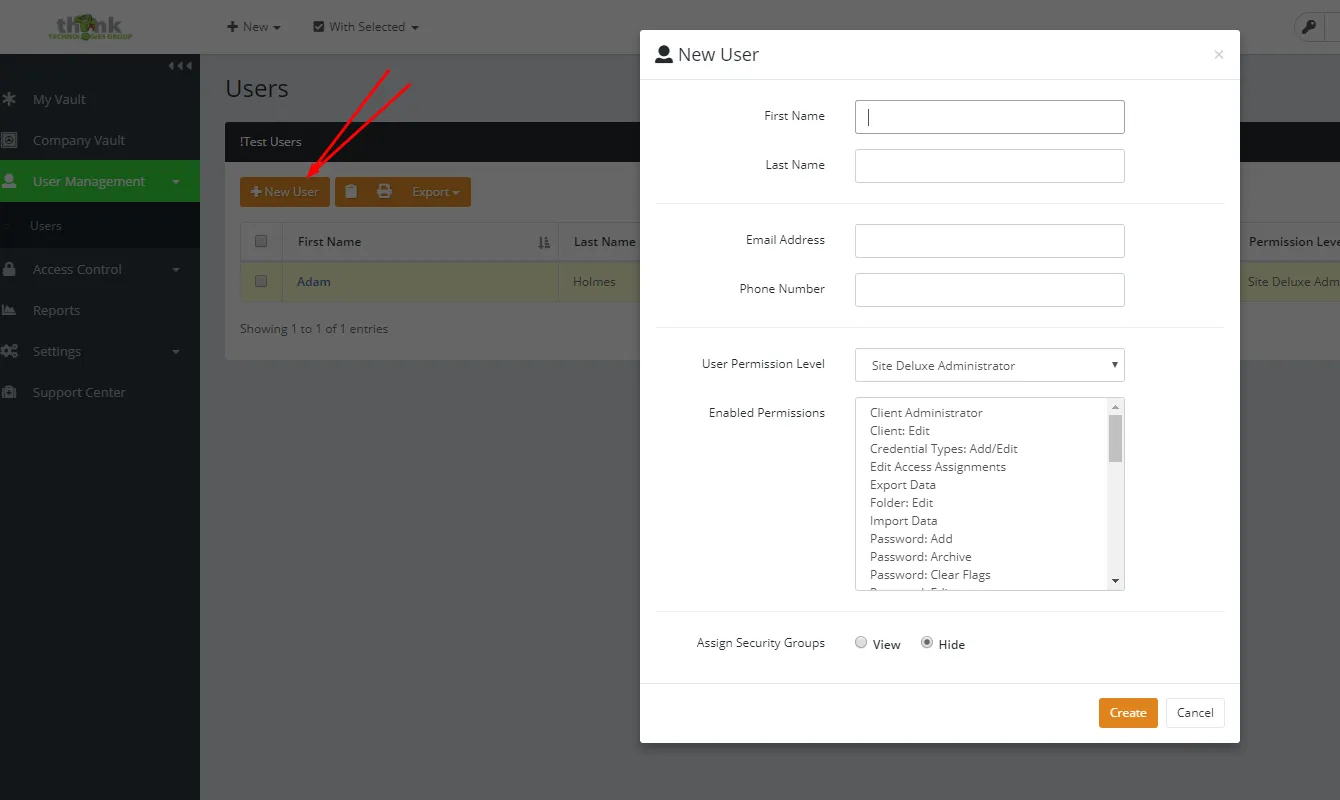
- If your organization uses Security Groups, click View and assign the groups this user needs access to.
- Click Create.
What Happens Next
The new user will receive an email asking them to complete sign-up.
- Every user needs the company Passphrase to decrypt the vault and finish setup. You can provide it directly or send it via Think Vault.
- Site Deluxe Administrators have full control in Think Vault. Site Deluxe Users have standard access.
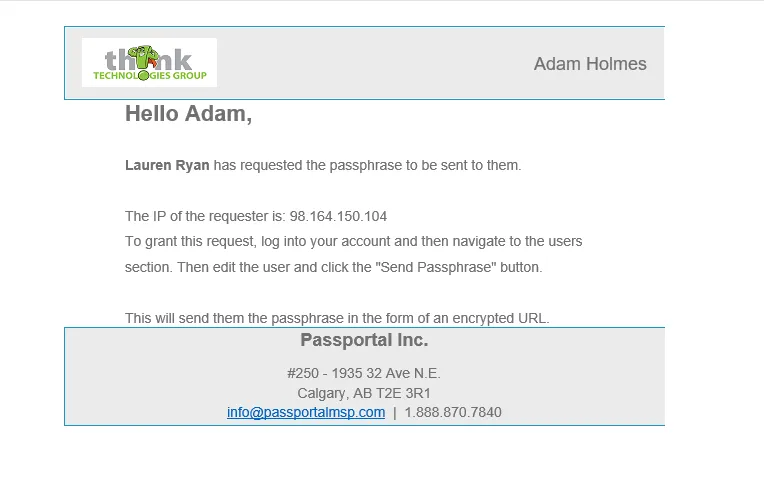
On first login, the user will need to click the Request Passphrase button. You will then need to send them the Passphrase email.
Sending the Passphrase Email
-
Log in to the Think Vault web portal.
-
Click User Management → Users.
-
Click the triple-dot menu next to the user and select Edit User.
-
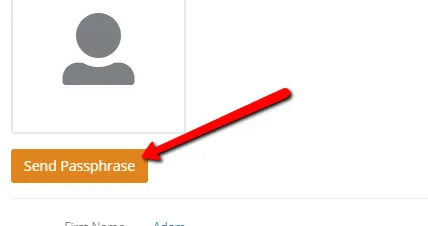
Click Send Passphrase.
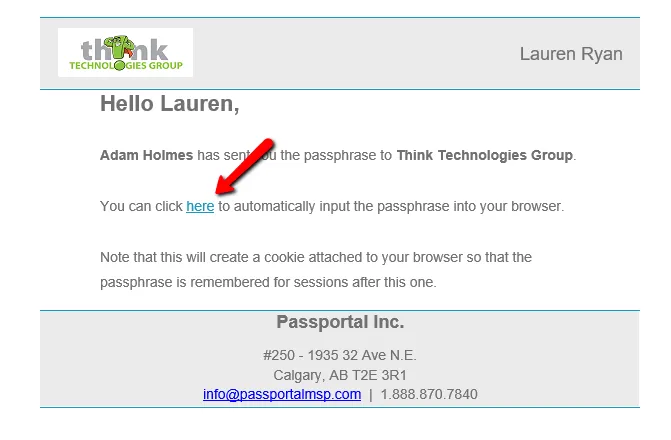
The user will receive an email with a link to enter the Passphrase and complete their setup.
Remember: Unless your configuration gives everyone access to all passwords, you will need to assign the new user to the appropriate Security Groups before they can see any shared credentials.