

On this page
Prerequisites
You must be a Site Deluxe Administrator to create folders and security groups.
Key Concepts
Before creating passwords, understand how access control works:
- Password Folders organize and secure groups of passwords. Access is controlled by Security Groups.
- If a password is created without a folder, all users can see it.
- If a folder has no Security Groups assigned, all users can access its passwords.
- Security Groups are collections of users that you assign to folders to restrict access.
The Workflow
Setting up a secured password folder takes three steps:
- Create a Security Group and add users to it
- Create a Password Folder and assign the Security Group
- Create passwords inside the folder
Step 1: Create a Security Group
- Log in to the Think Vault web portal.
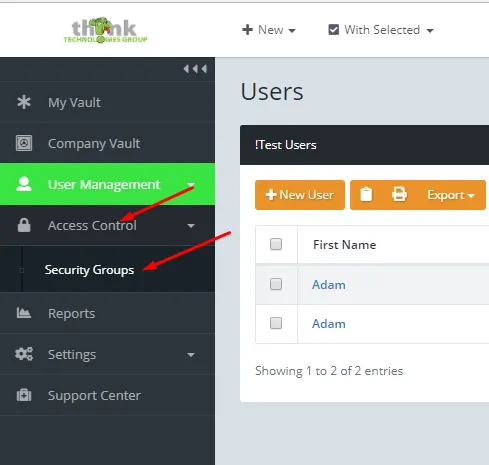
- Click Access Control → Security Groups.
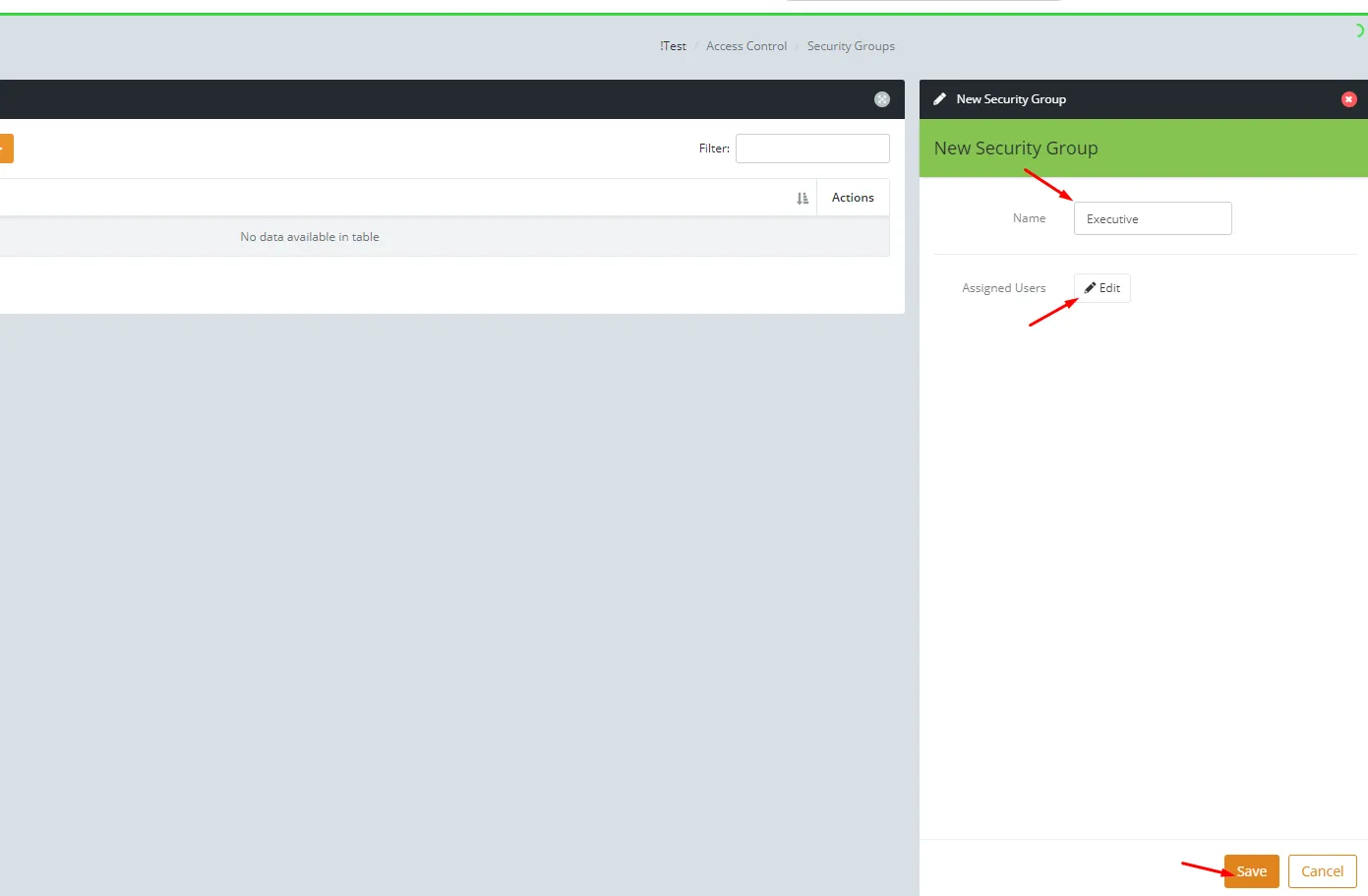
- Click New Security Group, enter a name (usually matching the department or folder it will secure), click Edit to assign users, then click Save.
Step 2: Create a Password Folder
- Click Company Vault in the left sidebar.
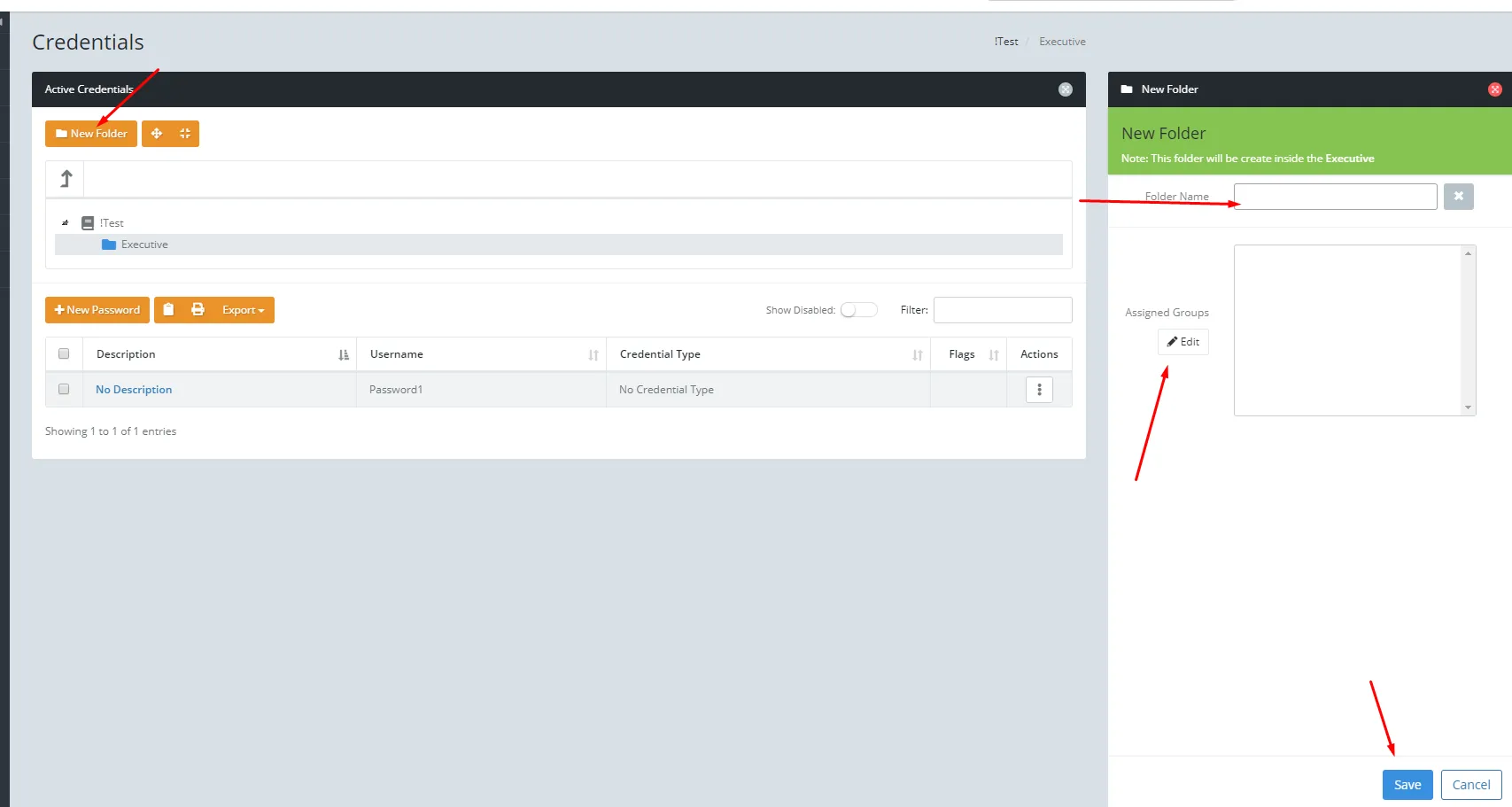
- Click New Folder on the right.
- Enter a name for the folder.
- Click Edit under Assigned Groups and select the Security Group you just created.
- Click Save.
Step 3: Create a Password
- Click Company Vault in the left sidebar.
- Click the folder you want to add the password to.
- Click New Password.
- Fill in the details:
- Verify the Folder is correct
- Enter the Username and Password
- Write a clear Description (this is the name you will see in the list)
- Choose a credential Type
- If the password is for a website, paste the URL of the actual login page
- Add any Notes you find useful
- Click Create.
Tip: After creating your first password in a secured folder, ask a colleague who has access to that folder to confirm they can see it. This verifies your Security Group setup is working correctly.