

Prerequisites
You must be a Site Deluxe Administrator to run audit reports.
How to Pull an Audit Report
Think Vault logs every password interaction: views, copies, creations, and changes. You can pull reports filtered by user, date range, or password.
- Log in to the Think Vault web portal.
- Click Reports in the left sidebar.
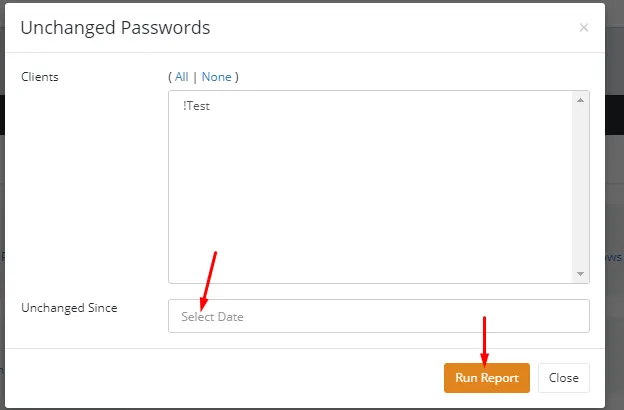
- Choose the report type you need. Each report has different parameters.
- Set the date range, user, or other filters relevant to your search.
- Click Run Report.
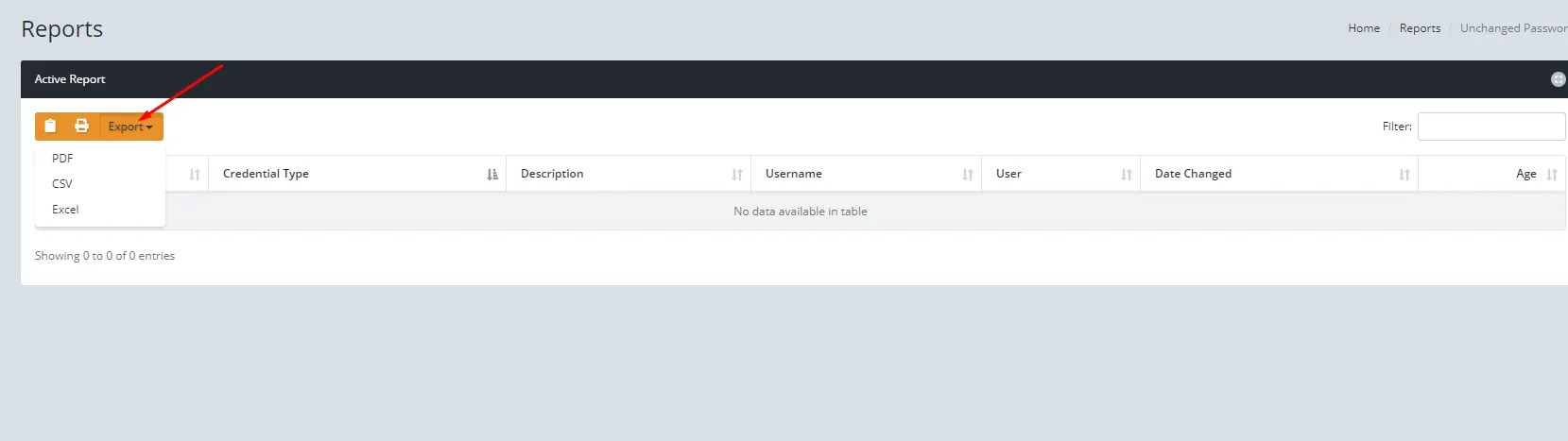
The results show on screen. To save a copy, click Export Data and choose your preferred format.
When to Use Audit Reports
- Employee departure: Pull every password they viewed in the last 30, 60, or 90 days to know exactly what needs rotating. See Disable a User for the full offboarding process.
- Security incident: Trace which accounts were accessed and by whom during a specific time window.
- Compliance reviews: Demonstrate password access controls and audit trail to auditors or insurance providers.